
Dayforce Reports to Data Warehouse Target
DLH.io documentation for Dayforce Reports to Data Warehouse Target
Any of your Ceridian Dayforce reports can be configured to be part of the data feed (aka replication) to your targeted data warehouse of choice.
DLH.io does this by conncting to your Ceridian Dayforce source connector and you will see available Dayforce reports underneath your list of tables/entities that are available to be replicated.
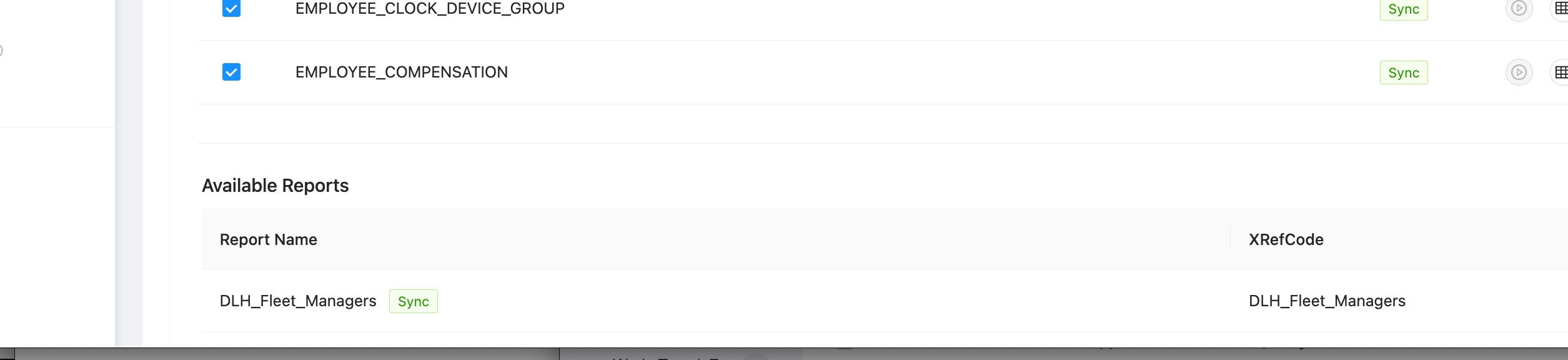
In order for your Dayforce reports to be replicated as-is from your Dayforce account you need to update each Dayforce report you wish to replicate in your Dayforce account so that:
- The report is accessible by the user you used to create your DLH.io Dayforce source connection
- The user you used to create your DLH.io Dayforce source connection has security access to the report category
- The report is of type V2
- The Report Integration Name is prefixed with DLH_ otherwise the report will not be found by DLH.io. For example, a report named Executives_Pay_Summary must have a name and an integration name of DLH_Executives_Pay_Summary
- To access any Ceridian report, make sure access to the Report Library feature is granted to the Ceridian role used in System Admin > Roles > Features tab within Ceridian.
- If the report is attached to a Report Category, access to this category also needs to be granted in the feature screen.
- In this example, access to the Compensation Management category is granted to access the Compensations Cycle report that is attached to the Compensation Management category
 Grant Access to Report Library
Dayforce Report With Required Parameters
If the Dayforce report will only run after entering parameters, DLH.io is able to pass a value to each Dayforce parameter.
Open the Ceridian Dayforce Source connection and click the Options button for the desired Ceridian Report.

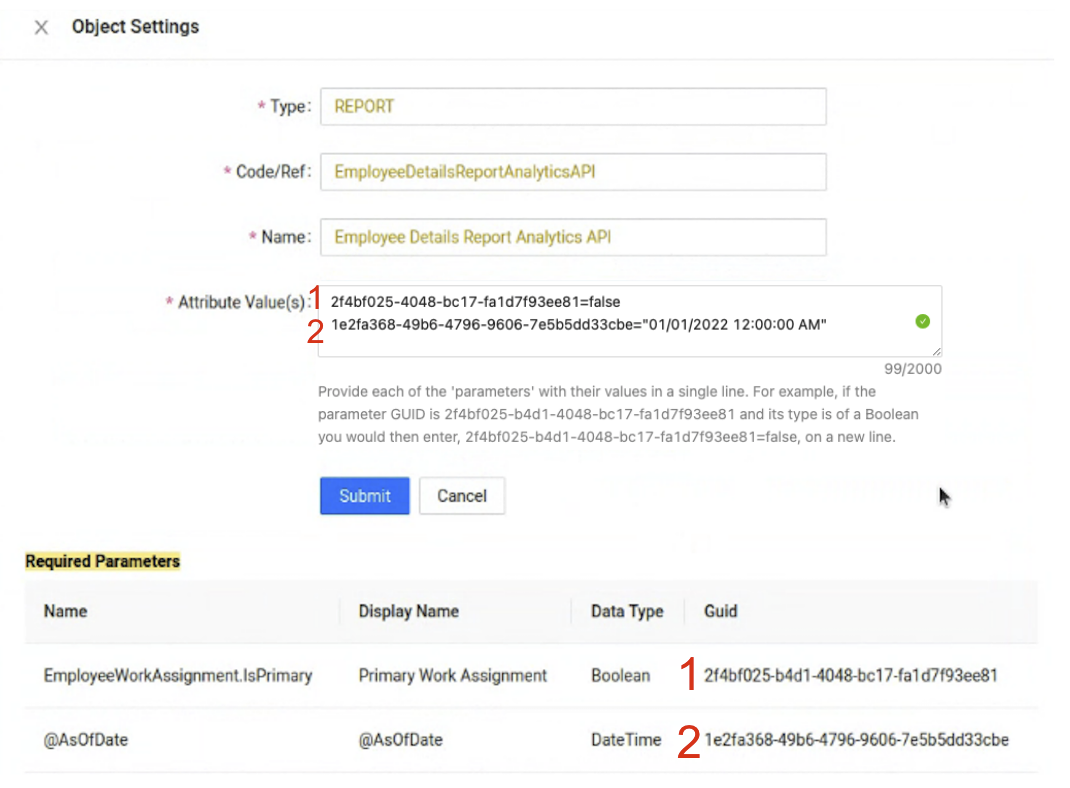
You only need to update the Attribute Value(s) field. Start by finding the Guid for the associated Parameter and then set the value. Provide each of the 'parameters' with their values in a single line.
For example, if the parameter GUID is 2f4bf025-b4d1-4048-bc17-fa1d7f93ee81 and its type is of a Boolean you would then enter, 2f4bf025-b4d1-4048-bc17-fa1d7f93ee81=false, on a new line.
Dynamic Parameters
The above example works well for those situations where a hardcoded parameter value is sufficient for each Sync Bridge Run. If you want the parameter value to be dynamic for each run, then the following example is appropriate.
In the example below, the GUID (A) references a date value and the goal is for the date to be dynamic so during each Sync Bridge run, the date that is passed to Ceridian as the parameter is today's date.

Set the Attribute Value equal to {{local_dt | format_date('MM/dd/yyyy HH:mm:ss a') }}
or, use a more standard today() function (recommended) such as,
{{ today().plusDays(-1) }} using the plusDays(#) function to manage previous time range or dates, which can then use the formatting aspect,
{{ today().plusDays(-1) | format_date('MM/dd/yyyy HH:mm:ss a' }}
If the report is still not showing in DLH.io, read more about this access via the following shared document, How to Configure Ceridian Dayforce Reports in DLH.io
Common Issues
Ceridian set throttle limits for getting data from reports to 10 reports per second up to 50 reports per hour. Once the throttle threshold is met the DLH.io Sync Bridge will pause an hour and continue the Sync Bridge. In other terms, you can replicate up to 50 reports from Ceridian to your Target Connection before the Sync Bridge will need to pause for one hour before continuing with data replication.
- Details on Ceridian API throttle limits
Also, keep in mind the amount of records on each report will also impact throttle limits.
- Ensure your reports do not have any required fields that do not have default values assigned to them. This will cause an issue in DLH.io retrieving the report. Any changes to the report in dayforce be sure to both APPLY changes you make as well as to SAVE the report. Many new users of dayforce will forget to click on the SAVE button after the changes have been made, and this will prevent the report parameters or report options from being seen in DLH creating a false negative.
- Ensure your reports have an XREF CODE in Dayforce that match the name of the report, this is an issue seen often when taking out of the box Dayforce reports and using them in DLH
- Confirm proper security has been given to the service account API user that you've successfully connected your Dayforce account to DLH with, and make sure proper permissions/privileges are there. If you can see the report in the DLH report list for the Dayforce connector then usually permissions are set up correctly.