
DBT Cloud Log Stream
DLH.io documentation for DBT Cloud Log Stream
dbt Cloud is the enterprise platform extension of the open source project dbt (data build tool) which emerged as a very popular data devOps tool amongst data engineers and analytics engineers for building data models and working with data in a more convenient manner over historical development methods.
Stream the dbt Cloud Log data into the Target Connection of your choice in order to centralize your log data across the application enterprise. Combine this data with Snowflake Usage Analytics to get an even better line of visibiilty in performance metrics.
Setup Instructions
Follow the setup steps guide for configuring your DBT Cloud Log Stream connection to enable data to flow into your destination via DLH.
Supported Features
Here are key features supported for this connector.
| Sync Feature | Supported | Details |
|---|---|---|
| Custom Data and Development | ✓ | Ability to enhance connector upon request |
| Historical Re-Load/Load | ✓ | |
| Incremental/Delta Load | ✓ | Gets most recent records and changes |
| Column Selection | ✓ | |
| Column Hashing | ✓ | |
| Re-Sync Table/Entity | ✓ | Select at the table level to reload data history (on next Sync Bridge run) |
| Custom Queries | Utilizing SQL Data Query Connector | |
| Custom Data | ||
| Captures Deleted Rows | ✓ | On all supported tables |
| API Sync Bridge Initiation | ✓ | |
| Priority Scheduling | ✓ | |
| Private VPC/Link | ☂ | |
| DLH Data Model Available | - |
If you have any questions about these supported features please reach out to our Customer Support team.
Details on Sync Processing
For this connector, we believe the sync processing is straightforward. We've provided a number of details, steps, and other guidance here and in the setup steps guide. Be sure to also check the change log and notes page from time to time for any changes.
Finding your DBT Cloud Information
There are two items you need from your dbt Cloud account in order to set up the DLH.io connector properly:
- Account Id
- API Key / Service Token
Locate your Account Id
The account id can be found in the URL of your browser, as typically anything after, https://cloud.getdbt.com/#/accounts/##### is your account number.
For example https://cloud.getdbt.com/#/accounts/12345, so your account number would be 12345.
Another way to find your account id is to go to https://cloud.getdbt.com and hover over your deployment environment and capture the URL.
 Hover to find your Account ID
Locate your Service Token
The Service Token can be found by clicking in the upper right hand of the platform gear icon and selecting the Account Settings option.
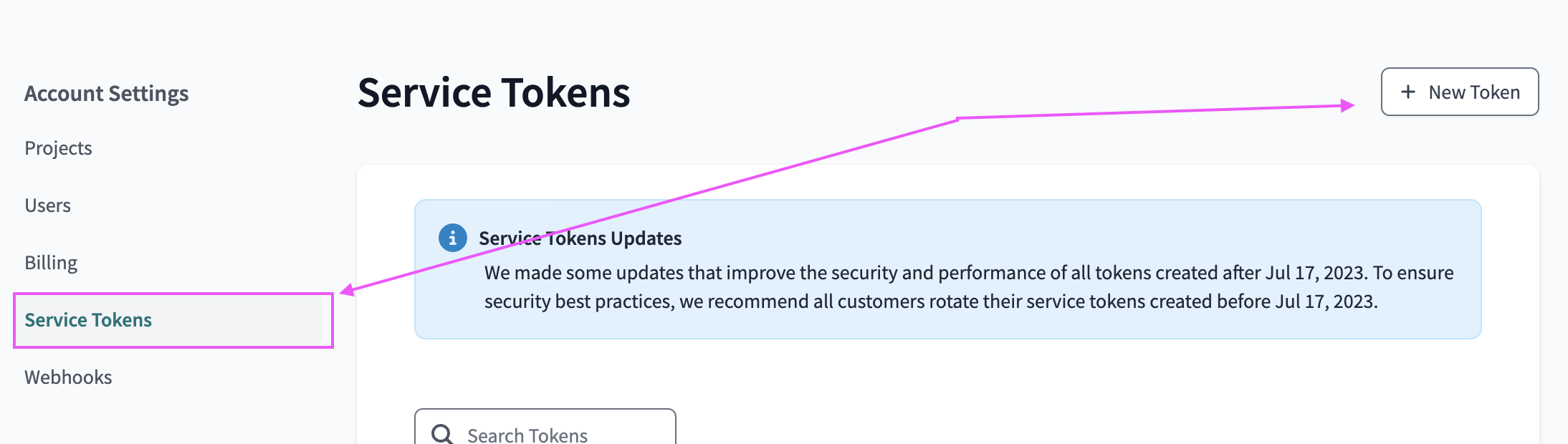
From the Account Settings page, click on the Service Tokens option in the left menu.

In the resulting page, click on the New Token option to create a new Service Token,
Create the new Service Token and set the Permission Set to Job Admin or higher. Click Save.

Copy the Service Token and paste into the Source Connection in DLH.io. This is the only time you'll be able to Copy the token! Once you close the Service Token screen in dbt you will not be able to recopy the token. You'll need to recreate a Service Token to get another token.

or view in the list an existing token that you wish to use for creating this DLH.io connector and capture it to be entered in the form.
Locate your API Key (alternative option)
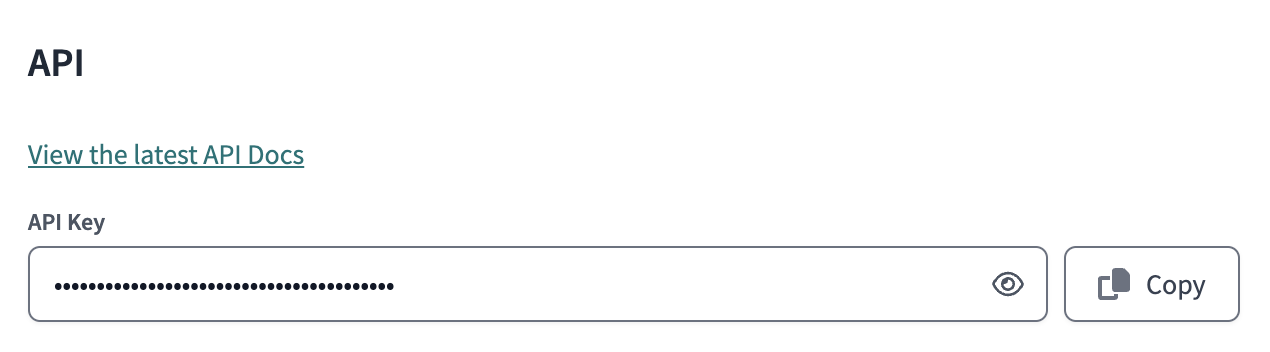
The API key can be found in your dbt Cloud account by clicking in the upper right hand corner of the platform gear icon and selecting the Profile Settings option.
API keys are unique to a specific user and follow the user and their credentials. So if the user is deleted that API key is no longer valid versus a Service Token which belongs to the account and is not associated with any specific user directly.
In your profile section scroll down until you see the API section. From here you can copy your API key.
DLH.io recommends only using a Service Token for this connector integration and setup.
Target Connection
When creating your Target Connection you must
Issue Handling
If any issues occur with the authorization simply return to the sources page in DLH.io, edit the source details and click the Save & Test or Authorize Your Account or Re-Authorize Account button to confirm connectivity. If any issues persist please contact our support team via the DLH.io Support Portal.