
Setup Steps
DLH.io Setup Guide for NetSuite (Oracle NetSuite)
NetSuite Connector Pre-Requisites
Connecting to NetSuite, you need to make sure that:
- You'll need your Account Id (the id of your store provided to you by NetSuite)
- You'll need the ability to sign in to your NetSuite account (usually a user with admin role privileges)
- A NetSuite service account or non-Administrator account for testing and connecting to DLH.io
- NOTE:
- This connection uses the NetSuite REST Web Services configuration, so when testing it is best to create a service account and assign it the appropriate role(s) or use another user who will act as the user connecting to your NetSuite account for this integration. Per the NetSuite documentation regarding OAuth 2.0 access:
- A user assigned a role with the OAuth 2.0 Authorized Applications Management permission cannot access RESTlets, REST web services, and SuiteAnalytics Connect using OAuth 2.0. To use OAuth 2.0 for access, the user must be assigned a role with the Log in Using OAuth 2.0 Access Tokens permission.
- This is because if you have the Administrator role assigned to you, your user includes the Authorized Applications Management permission as one of your roles, which would conflict or be not perissable per the instructions from NetSuite.
- This connection uses the NetSuite REST Web Services configuration, so when testing it is best to create a service account and assign it the appropriate role(s) or use another user who will act as the user connecting to your NetSuite account for this integration. Per the NetSuite documentation regarding OAuth 2.0 access:
- NOTE:
NetSuite Setup Steps for OAuth REST API Access
These instructions being provided are specific to the DLH.io NetSuite connector. While it is recommended to also use the NetSuite SuiteAnalytics connector, this connector we believe provides additional or more streamline data replication though a reduced number of tables will be replicated to your target due to the limited number of available entities available using this integration approach which behind the scenses uses the NetSuite REST API for NetSuite Web Services.
Here is the list of available REST API entities available per the NetSuite documentation.
NetSuite Non-Administrator Permissions
Permissions needed (if not admin) in order to manage NetSuite 'Integrations' per the documentation are:
- Integration Applications permission (List type)
- Integration Application permission (Full level, Setup type)
These steps below are required to configure your NetSuite account environment to successfully integrate with DLH.io (again, these steps have similarities to, but are mainly different from the NetSuite SuiteAnalytics connector setup):
Instructions (Basic Connection Setup)
DLH.io securely connects to your NetSuite account instance and does not store your password or credentials.
Using the form please complete the following basic steps:
- Enter a Name or Alias for this connection that is unique in the 'Name/Alias' field
- Enter a unique target schema name for your cloud warehouse destination in the 'Target Schema Prefix' where you wish to land the data
- Enter your NetSuite account name in the Account ID field
- Enter your NetSuite account name in the Cliend ID field
- Enter your NetSuite account name in the Client Secret field
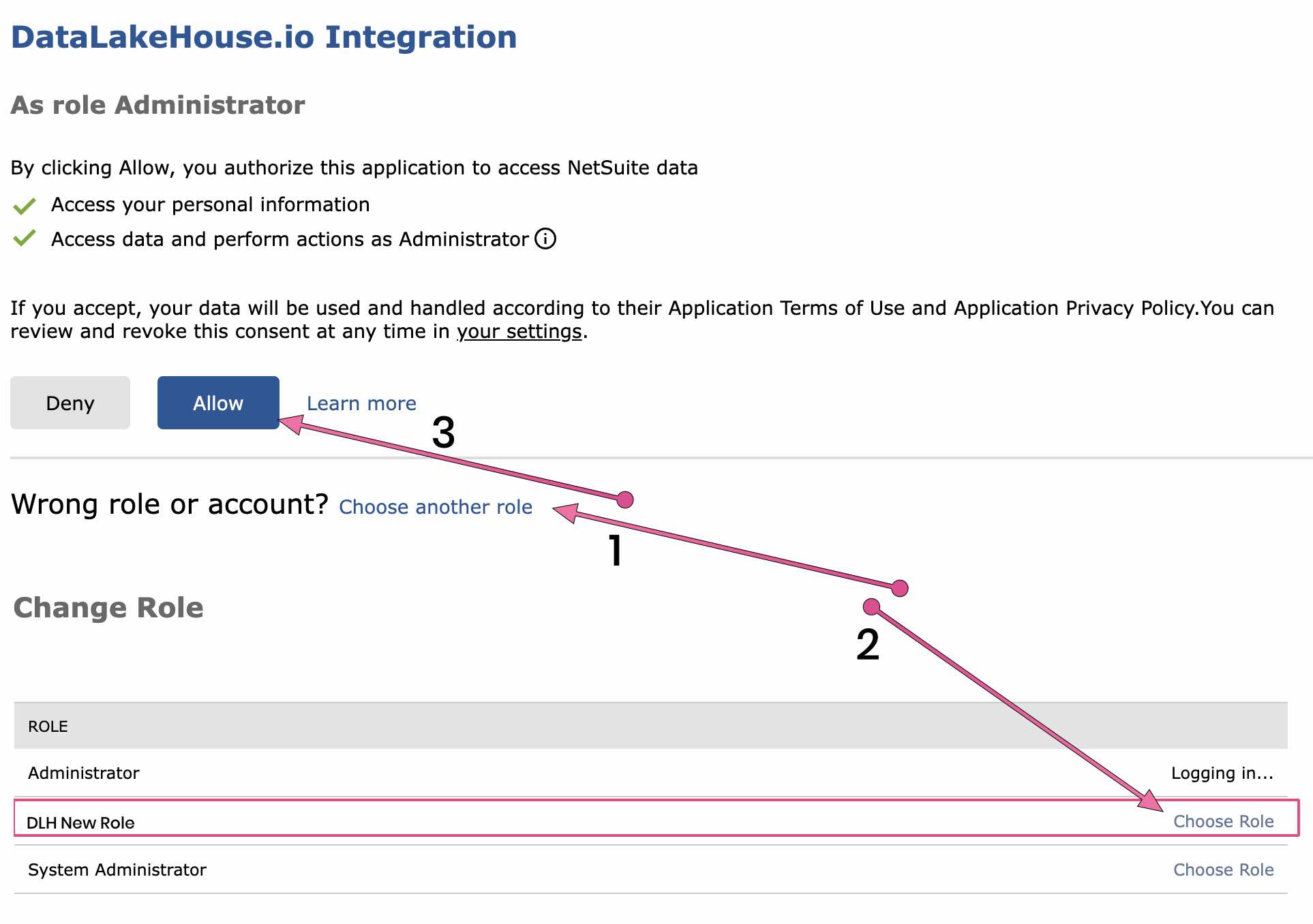
- Click the 'Authorize Your Account' button which will transport the page to the NetSuite login, where you will enter your NetSuite account credentials. Once your credentials are accepted you will be automatically redirect back to this DLH.io portal and you should be able to see a successful connection of your source. Usually and it is recommended to select a *NON Administrator *role, so selecting the option to Choose another role, and then selecting the appropriate role from the list by clicking Choose Role will then allow you to click the Allow button.
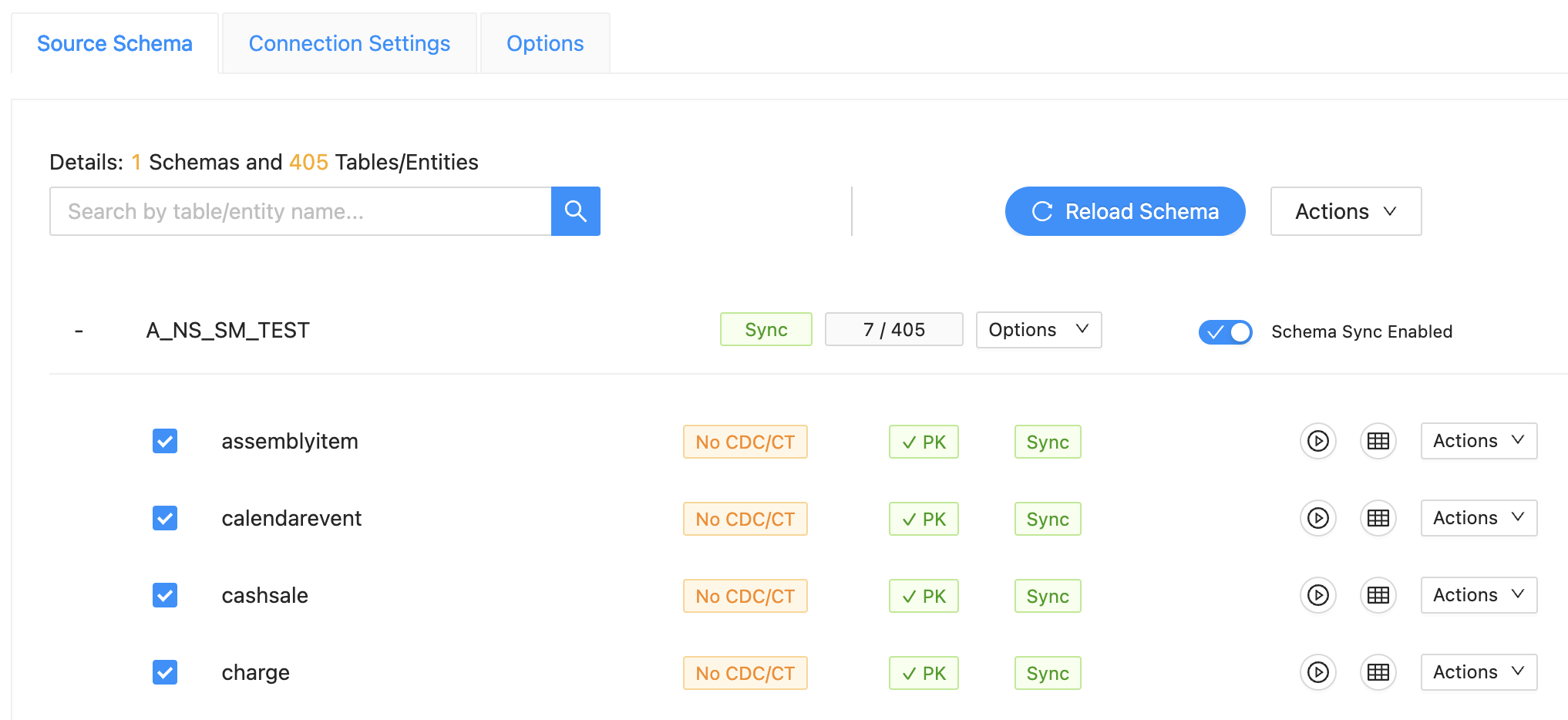
- Once authenticated and returned to DLH.io you may access the connection and click on the Schema tab. Ensure that the list of entities/tables appears. If not you may click the Reload Schema button. Please note, reload of the schema may take 2-10 minutes to complete depending on how large of an instance is your account.
- Done